
Know a bargain before you buy
A free app that runs beside MapleStory Classic World. Open any Free Market shop and every item is tagged cheap or pricey against what it really sells for on HubCW. Open your inventory to see what it's worth. Go hunting and it tracks your EXP and kills per hour, and what you earn: mesos plus your drops at HubCW prices.


- Free, no accountNo ads, no payments
- Never touches the gameIt only reads your screen
- Any screen size800×600 up to ultrawide
- Updates itselfSigned, in the background
Every shop, price-checked
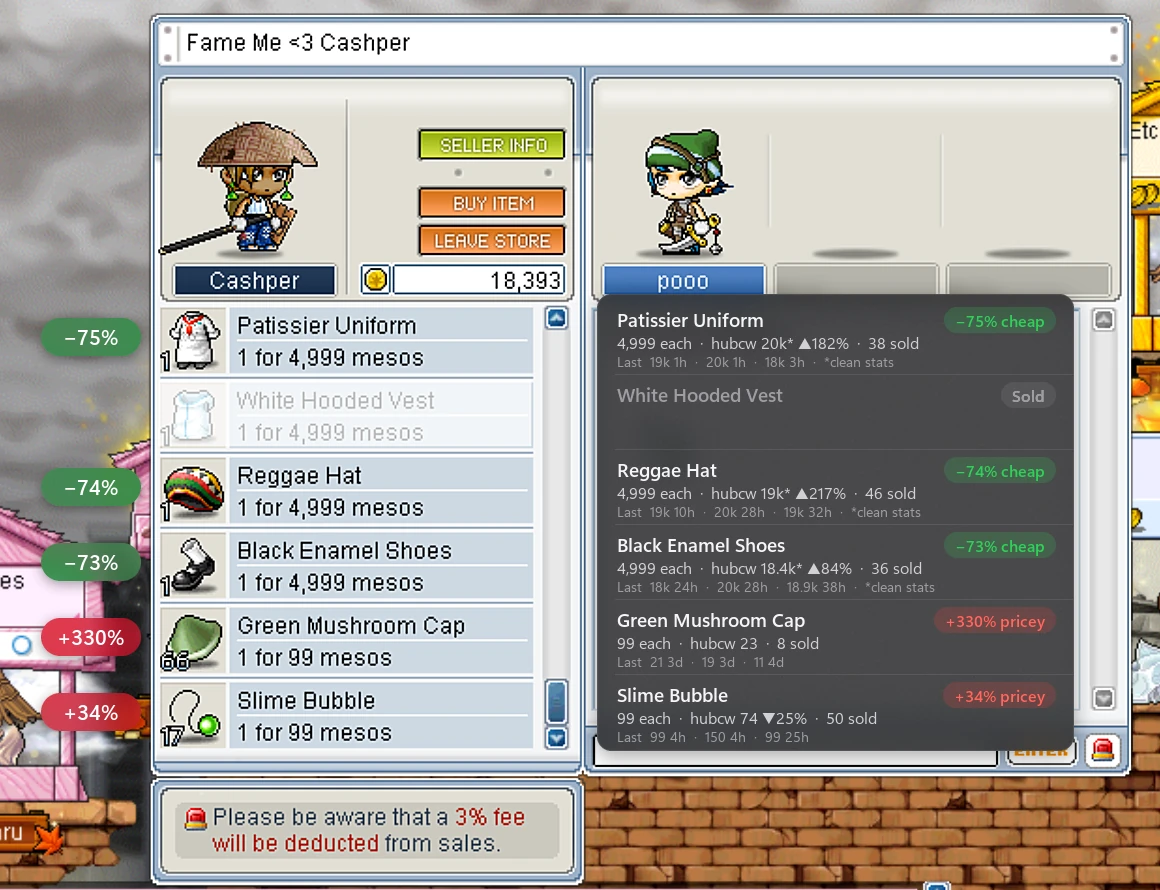
Open someone's store or hired merchant. CW Companion reads each row's item and price, and compares the price each with real sales on Price Check.
What the tags mean
- −38%Cheap: well under what it sells for
- +4%Fair: about the going price
- +61%Pricey: you can likely do better
- ★ wishWishlist: on your list, at your price
The panel beside the shop lists each item's price each, HubCW's median with ▲ or ▼ when it's rising or falling, how many sold and the last sale. Prices are compared with the median of the last few days of sales when there are enough, else the last 30 days, and equips with clean ones. You decide how far off counts as cheap or pricey.
The app keeps HubCW's whole price list on hand and refreshes it every minute, so the tags are up a moment after the shop opens.
The tags and panels are frosted glass, so the game shows through them, blurred. For a plain see-through tint, switch off Settings → On the game → Frosted glass panels.
Price your own store
Each row says if you're under, at or over the market, with a price just under HubCW's (5,200 → 5,199) and the lowest ask.
Wishlist alerts
Add items you're after, with the most you'd pay, and see HubCW's price beside each. A shop that has one turns the row gold and plays a soft sound.
Look up any price
Type an item's name in the app to see what it sells for, whether it's rising or falling, and its last sales. No shop needed.
See what your bag is worth
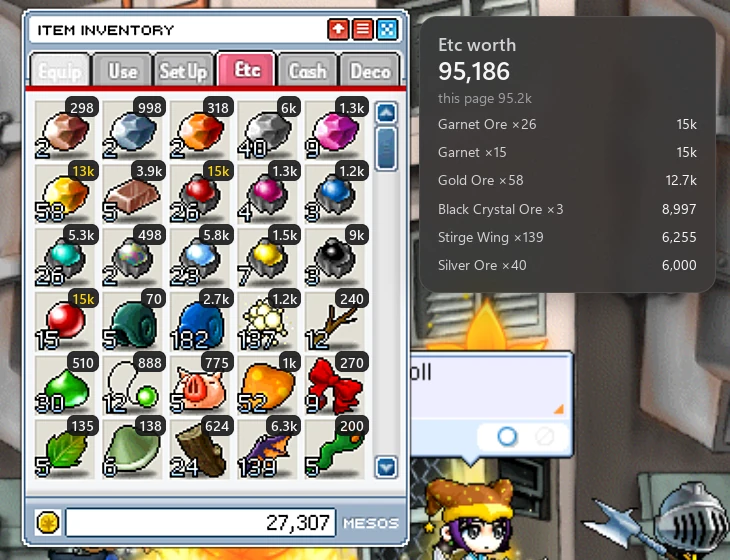
Open your inventory and every stack gets its price from real sales on Price Check. Know what to sell, what to keep, and what that Etc tab full of ores adds up to.
On the window
- 6kEach slot: what that stack sells for
- 18kGold: the page's three most valuable stacks
A panel beside the window adds up the tab as you scroll through it. In the app, the Items page lists every item with its price each and what it all comes to: Etc, Use and Set-up, with your equips apart at clean prices. Items it can't be sure of, like scrolls that share one icon, are left out rather than guessed.
It also reads the mesos under your slots, and shows what you've earned and spent since the session started.
Know how your training is going
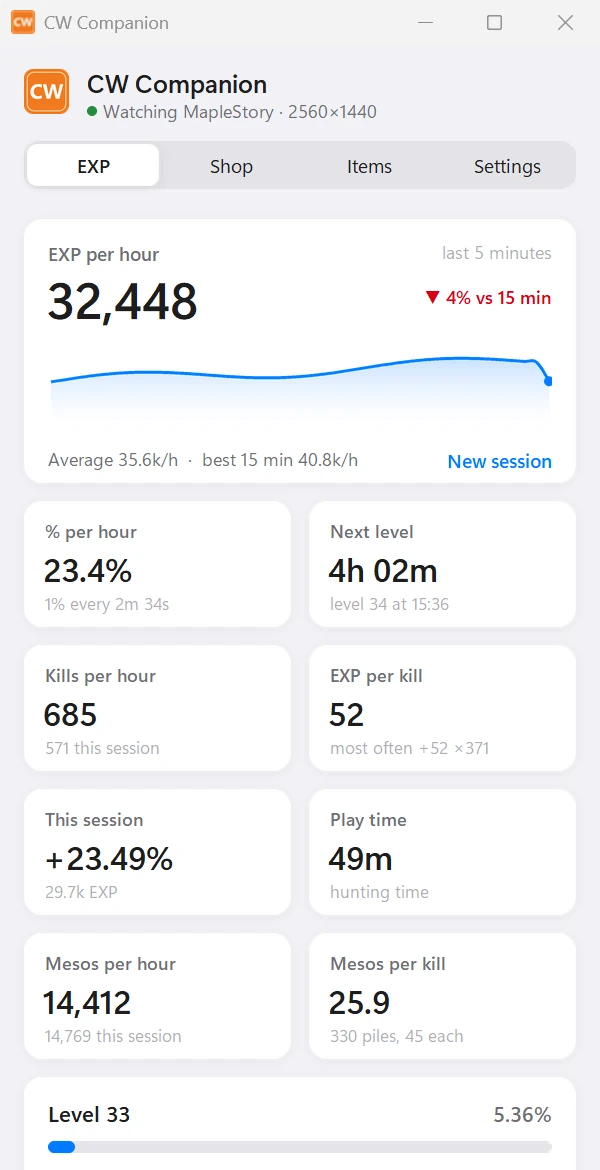
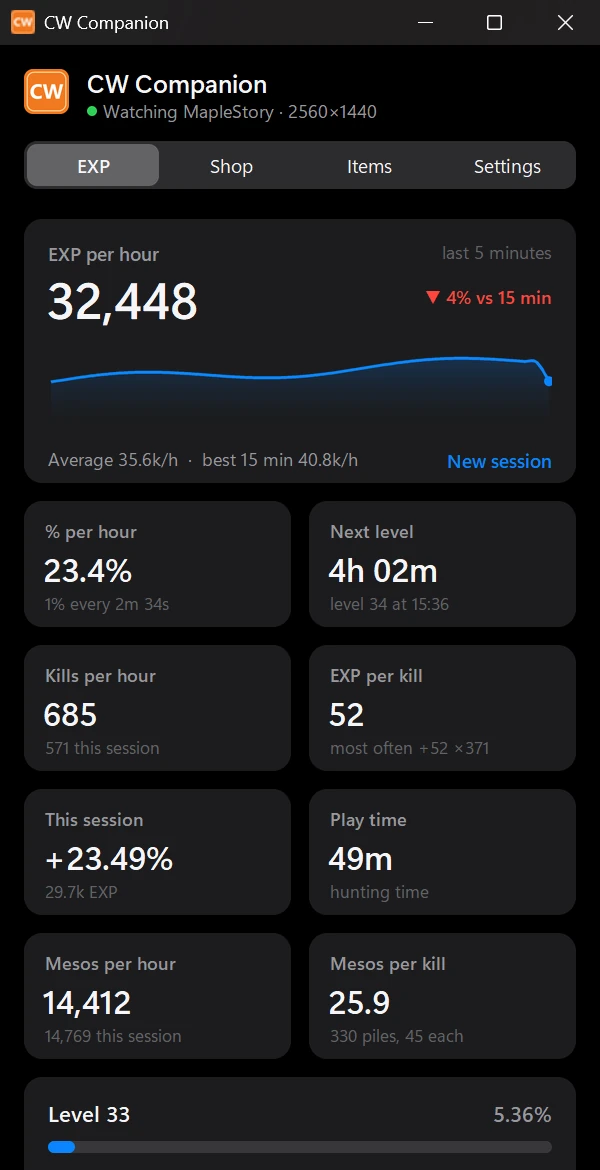
A small box beside your status bar keeps the numbers in sight, and the app's window has the full picture.
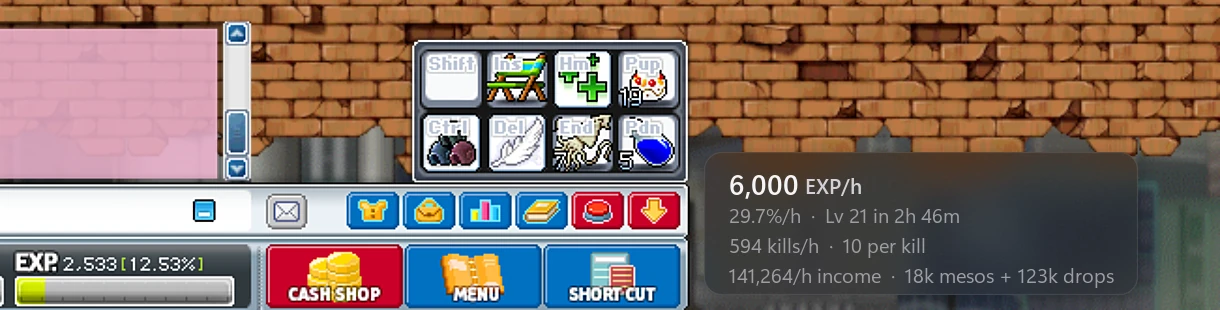
EXP per hour
Last 5 minutes, last 15 and the whole session, % per hour, and the time and clock time of your next level.
Kills & income
Kills per hour and EXP per kill, potions used, and income per hour: the mesos you pick up plus your drops at HubCW prices.
Your history
Today and the last 7 days, a log of every level with how long it took, past sessions and your personal bests.
How it counts
See what a hunt really earns
Mesos are only part of it. Every item you pick up is priced at what it sells for on Price Check, so you can tell which training spot pays best, not just which levels you fastest.
In the app
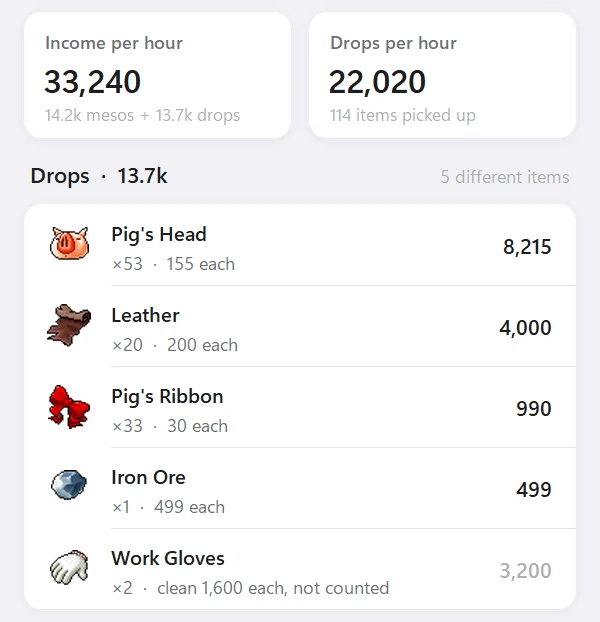
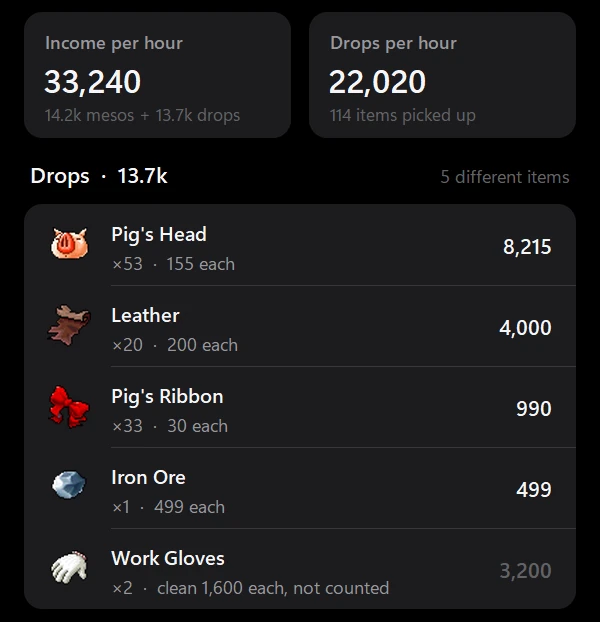
Income per hour adds the mesos you pick up to what your drops are worth. The Drops list shows each item, how many you picked up and what they come to, best first.
Items with no HubCW price yet count as nothing, and equips are listed apart at clean prices, since their stats vary. A pickup whose name doesn't read clearly is left out rather than guessed.
The box beside your status bar shows your income too, and Today, past sessions and your personal bests count it.
Up and running in four steps
- 1Download and run the installerIt installs for your Windows user only and needs no admin rights.
- 2Click through SmartScreenThe app is new and not code-signed yet, so Windows may say it “protected your PC”. Click More info, then Run anyway.
- 3Play windowed or borderlessThe app reads your screen, so exclusive full screen shows it a black picture.
- 4Click into MapleStoryOpen a shop in the Free Market, or go hunting. That's it.
It looks. It never touches.
CW Companion sees the same pixels you do, and nothing more. It doesn't read the game's memory, change its files or play for you.
Only looks at your screen
The same pixels you see, and only while the game is in front.
Never touches the game
No memory reading, no changed files, and it doesn't even open the game's process.
Never plays for you
No key presses, no clicks, nothing automated. Clicks pass straight through its overlay.
Sends almost nothing
It downloads HubCW's price list and checks for updates. Sharing shop prices with HubCW is opt-in.
Is it really free?
Yes. No account, no ads, no payments. It's made by HubCW to make Price Check more useful in game.
Windows says it “protected your PC”. Is something wrong?
No. Windows shows that for new programs that aren't code-signed yet. Click More info, then Run anyway. To be sure the file is ours, compare its SHA-256 with the one under the download button below (in PowerShell: Get-FileHash .\CWCompanion-Setup-*.exe).
The app says the game looks black.
The game is in exclusive full screen, which other programs can't see. In the game's Options, pick windowed or borderless full screen.
Will it slow my game down?
It copies a picture of the game window 7 times a second, and half that when no shop or inventory is open. On a slower PC, lower it in Settings → Screen reading → Reads per second, which also shows how long each read takes.
Some rows show “?” instead of a price tag.
Either HubCW has too few sales of that item to compare with, or the app couldn't tell which item it is. It shows “?” rather than guess.
Does it work with non-English Windows, or on a Mac?
Prices, EXP, HP and MP are read with the game's own digits and work everywhere. Item names and the pickup log (mesos and drops) use Windows' built-in text recognition, which works best with English installed as a Windows language. A Mac version isn't available yet.
What is price sharing?
An optional setting. Link the app to your HubCW account, and the visitor shops you open are sent to HubCW to keep Price Check fresh (switch off Share prices I see in the app's Settings to stop). Shared prices only count once another player confirms them, and your name isn't shown with them.
The app also sends where each shop is: the Free Market room and the channel, which it reads off the game's Change Channel window (open it once). Shops still selling can then show on the item's price page under Selling now in the Free Market, so others can find them. Your own store is only sent if you also turn on List my own store too, and is listed under your IGN. How it works and your linked apps.
Something read wrong. How do I report it?
In the app, open Settings and click Save debug capture right after it happens, then email the folder to [email protected] with a line about what you expected.
How do I uninstall it?
Windows Settings → Apps → CW Companion → Uninstall. Your sessions and settings stay in %APPDATA%\CW Companion in case you come back; delete that folder to remove them too.
Get CW Companion
Version 0.16.0 · 41.9 MB · Windows 10 & 11 · released Oct 20, 2026
14d0246e7af4c76245029dd092ad462cf7b34f52d238fa824ceb0bec0dcd39b8